Email notifications: best practices and example
Why email notifications remain essential
Email notifications remain a fundamental mechanism in the monitoring and management of IT infrastructures. Despite the proliferation of instant messaging solutions, collaborative platforms and integrated alerting systems, email remains a reliable, standardized and universal communication channel. In a monitoring context, it allows critical or contextual information to be transmitted without relying on a third-party tool, while offering complete traceability.
With ServicePilot, email notification configuration is directly integrated into alerting workflows, automating the distribution of relevant information to operational teams, administrators or application managers. Whether it is alerting about a failure or informing of a status change, a well-designed email can save operational teams valuable time.
Despite the emergence of numerous alternative communication channels, email retains several advantages:
- Universality: No dependence on a third-party tool or specific application
- Traceability: Emails can be archived, forwarded and searched
- Reliability: SMTP servers are robust and widely supported
- Flexibility: Ability to modify content and format
In this article, we explore best practices for creating effective notifications, as well as a concrete example applicable in ServicePilot.
Best practices for creating effective notifications
Clearly define the purpose of the notification
A notification is only valuable if the recipient immediately understands what to do with it. In a technical context, this means distinguishing between alerts that require immediate action and information intended to enrich the overall understanding of the system.
The best email notifications are only triggered when human intervention is actually required. They should be:
- Rare
- Urgent
- Important
- Actionable
When setting up email notifications, it is therefore essential to carefully select the types of alerts that really need to be sent out. Not all available information necessarily requires notification, so it is important to identify critical incidents in order to avoid overwhelming recipients with unnecessary information.
ServicePilot allows for a granular selection of events on which to generate an alert: metric threshold exceeded, status changes, targeting of a specific scope (views, resources or objects), syslog messages or SNMP traps, queries in the ServicePilot database, etc.
Defining specific scopes also allows you to target the right teams, reduce the overall volume of emails and focus attention on incidents that require action. This fine-grained selection not only improves the relevance of alerts, but also operational responsiveness while reducing alert fatigue.
Use a short and explicit subject line
The subject line of an email is often the only thing read at first glance, especially when a technician checks their alerts on a mobile device. It should be short and precise. It can contain essential information: the nature of the event, the resource concerned and possibly the level of criticality. In ServicePilot, it is possible to include dynamic variables in the subject line, allowing you to automatically insert the name of the service, the metric value or the detected status. This customization greatly improves readability and reduces the time needed to identify the source of the problem.
Structure content for quick reading
Even if the email contains a lot of information, it must remain readable at a glance. The message must present the triggering event, the metric concerned and the exact time of detection. ServicePilot allows you to automatically integrate this data using alert variables, ensuring consistency between the content of the email and the information visible in the monitoring interface.
A few simple rules:
- Start with critical information
- Use short sections
- Highlight key data (statuses, metrics, timestamps)
Add context to facilitate diagnosis
An isolated alert can be difficult to interpret. Adding context reduces the risk of false positives and improves the team's ability to quickly diagnose the cause of the problem.
For example, a high CPU alert on a server can be accompanied by a link to the ServicePilot interface with the corresponding graph, a link to the event log to quickly check for events that have occurred in the last few minutes or a link to the mapping to check the dependencies and impacts that the incident may cause.
Pay attention to HTML design to improve readability and adoption
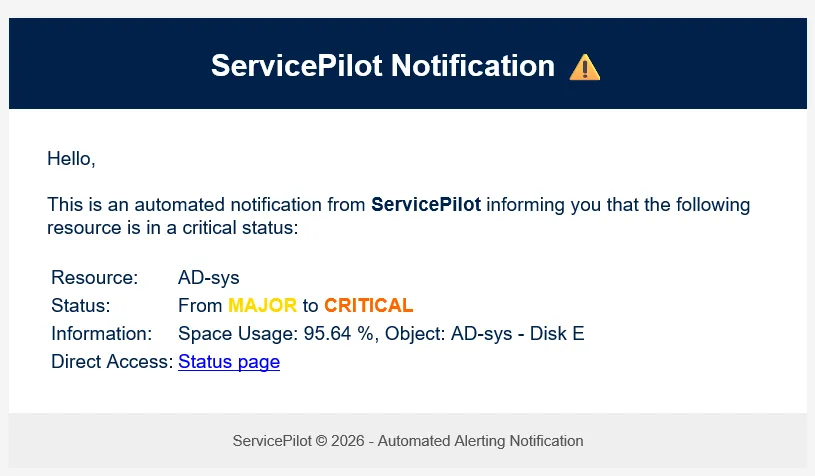
A visually well-structured email significantly increases the effectiveness of notifications, as it makes them easier to read, reduces cognitive load and reinforces the credibility of the tool sending them. In a monitoring context, where teams sometimes receive dozens of alerts per day, a clear and consistent HTML design allows essential information to be immediately distinguished. The use of an identifiable header, colors consistent with the company's graphic charter and color coding for criticality levels (e.g. red for critical alerts orange for warnings, etc.) improves instant understanding of the message.
From a technical standpoint, it is recommended to use simple HTML that is compatible with most email clients: tables for layout, inline styles to avoid rendering issues and a text fallback for restrictive environments. ServicePilot allows you to integrate this type of template directly into notifications, ensuring visual consistency between different alerts. A well-presented email also contributes to the adoption of the tool as it gives an impression of professionalism while making alerts more pleasant to view. In the long term, this reduces the risk of “alert fatigue” and encourages teams to remain attentive to the notifications they receive.
Example of an email notification with ServicePilot
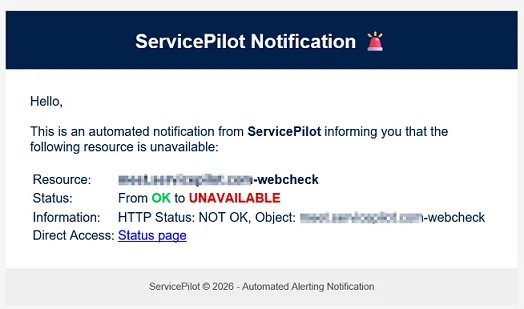
In this example, we generate an email notification using an Alert Policy targeting unavailable resources. We choose the transition from any status to a red status (unavailability), during business hours and for all resources contained in two views (Applications and Infrastructure).
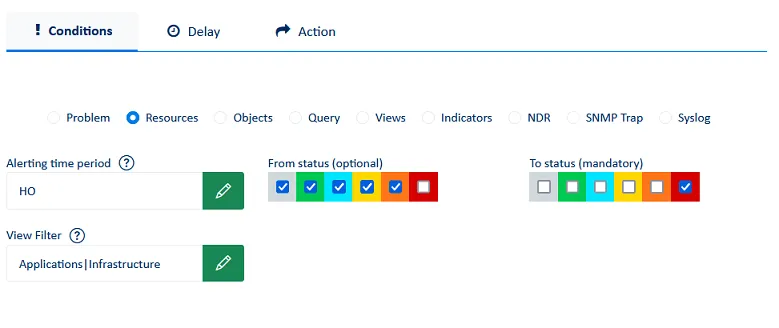
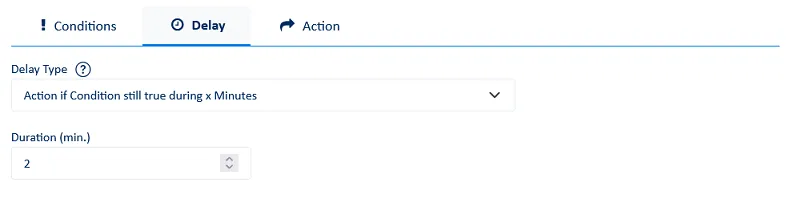
We include a 2-minute delay so that the alert is only triggered if the condition is still true after 2 minutes of unavailability. This avoids false positives and ensures that the alert is only triggered in the event of a real and persistent unavailability.
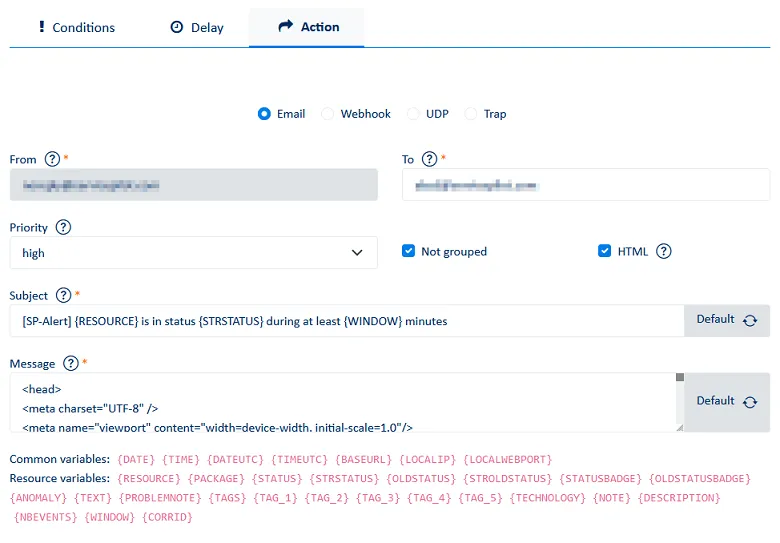
We can then configure the sending of emails with the subject line, the recipient and the HTML/CSS template to customize the notification with the correct variables.
It is also possible to use variables in the email subject line, for example: “[SP-Alert] {RESOURCE} is in status {STRSTATUS} during at least {WINDOW} minutes.”
HTML template:
<!DOCTYPE html>
<html lang="en">
<head>
<meta http-equiv="Content-Type" content="text/html; charset=UTF-8"/>
<meta name="viewport" content="width=device-width, initial-scale=1.0"/>
<title>ServicePilot Notification</title>
<style>
.OK {color:#00c855;}
.MINOR {color:#00e6ff;}
.MAJOR {color:#ffd900;}
.CRITICAL {color:#ff6600;}
.UNAVAILABLE {color:#d50000;}
</style>
</head>
<body style="background-color:#f4f4f4; margin:0; padding:20px; font-family:Arial, sans-serif;">
<table align="center" cellpadding="0" cellspacing="0" style="background:#ffffff; border-radius:8px; font-family:Arial, sans-serif;">
<tr>
<td style="background:#00214a; padding:20px; text-align:center; color:#ffffff;">
<h2 style="margin:0; font-size:20px;">ServicePilot Notification 🚨</h2>
</td>
</tr>
<tr>
<td style="padding:30px; color:#00214a; font-size:14px; line-height:1.6;">
<p>Hello,</p>
<p>This is an automated notification from <strong>ServicePilot</strong> informing you that the following resource is unavailable:</p>
<table style="color:#00214a; font-family:Arial, sans-serif; font-size:14px;">
<tr>
<td><i>Timestamp:</i></td>
<td><strong>{DATE} - {TIME}</strong></td>
</tr>
<tr>
<td><i>Resource:</i></td>
<td><strong>{RESOURCE}</strong></td>
</tr>
<tr>
<td><i>Status:</i></td>
<td>From <span class="{STROLDSTATUS}"><strong>{STROLDSTATUS}</strong></span> to <span class="{STRSTATUS}"><strong>{STRSTATUS}</strong></span></td>
</tr>
<tr>
<td><i>Information:</i></td>
<td>{TEXT}</td>
</tr>
<tr>
<td><i>Direct Access:</i></td>
<td><a href="{BASEURL}/resourcelist.html?resource={RESOURCE}">Status page</a></td>
</tr>
</table>
</td>
</tr>
<tr>
<td style="background:#eeeeee; text-align:center; padding:15px; font-size:10px; color:#555555;">ServicePilot © 2026 - Automated Alerting Notification</td>
</tr>
</table>
</body>
</html>
Result:
Improving the example to go further
It may be useful to define more granular alert rules, for example to distinguish between complete server unavailability, a problem affecting a specific component (disk, network interface, power supply) or events originating from specific SNMP traps and syslogs.
By refining the type of alert, you can enrich the email sent with useful contextual information: verification procedure, log message or even a playbook guiding the operator through the initial diagnostic steps. This approach improves responsiveness and reduces the time needed to qualify the incident.
Examples of recommended actions:
For an offline server
- Confirm that the server is actually unavailable (e.g., by testing an application service via curl
http://server:port) - Check the status of the server physically or via the remote console (iDRAC, iLO, IPMI, etc.)
- Check intermediate network connectivity (switch, firewall, routing)
- Restart network services or the machine if no hardware anomalies are detected
- Verify that the server is available again to confirm resolution
For a disk close to saturation
- Identify the largest directories or files (using -sh *, ncdu, etc.)
- Check for logs that are growing abnormally or temporary files that have not been purged
- Check scheduled tasks that may generate data (backups, exports, dumps)
- Free up space or expand the volume if necessary
- Monitor disk usage after taking action to confirm resolution
Tips for avoiding noise in email alerts
To limit noise and avoid overwhelming operations teams, it is essential to control the volume of alerts sent by email. Although the grouping feature cannot be customized with HTML and CSS, enabling it automatically groups all alerts triggered by a rule within a one-minute window. This mechanism is particularly useful when many monitored items simultaneously match the same alerting rule: instead of a barrage of emails, a single consolidated message is sent. This approach reduces information overload, makes reading easier and allows operators to better prioritize simultaneous incidents rather than focusing on managing the flow of emails.
Optimizing notifications: a key to effective monitoring
Email notifications remain an essential pillar of IT monitoring. By applying a few best practices (clarity, context, structure and relevance) you will not only improve team responsiveness, but also the overall quality of your monitoring.
With ServicePilot, alert configuration and customization allow email notifications to be tailored to the needs of each organization.
