ServicePilot Agents
What is a ServicePilot Agent?
ServicePilot Agents are designed to collect monitoring data from various sources and send this data to ServicePilot. ServicePilot Agents require minimal configuration. Once installed, all they need is a web access to ServicePilot and an API key to secure the communication. All further configuration is done through the ServicePilot web interface.
They have been designed to ensure the effectiveness in their data collection and transmission tasks with several mechanisms:
- Local processing: Some of the analysis can be performed locally. Filtering and aggregating raw data to transmit only essential KPIs to ServicePilot limits upstream flows.
- Secure protocol: They use HTTP2 combined with the HTTPS protocol to help with compression, optimize exchanges and enable secure data communication.
There is always a requirement for at least one ServicePilot Agent, as virtually all data collection is performed by agents. The number of Agents required depends on the type of monitoring the Agents are asked to perform and if the Agents can access the data required.
Local and remote data collection
Different ServicePilot Agents have different collection capabilities. To see if a ServicePilot Agent needs to be installed on the same server from which it will collect data, see the Local collect column in the Licenses - Agent details table in the ServicePilot web interface.
- Using a user with admin privileges, log in to ServicePilot.
- Click on Agents > Install an agent.
- Click on the Agent Details.
| Local data collection | Remote data collection |
|---|---|
Agents can collect data from the server on which they are installed. Some data collection can only be performed on the same host as a ServicePilot Agent. 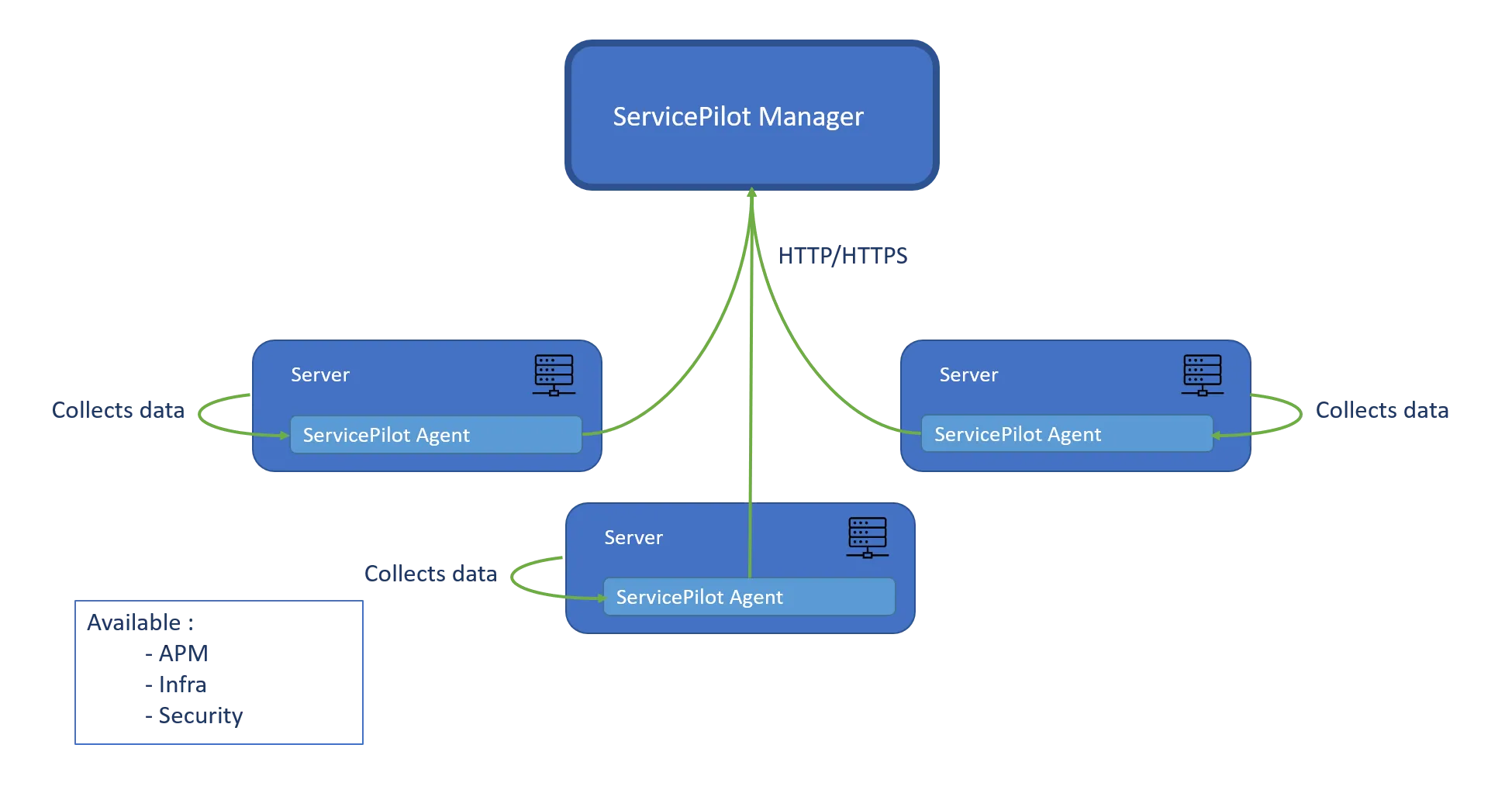 |
Agents can also obtain data from other devices and listen for events that are pushed to them, provided that network access to other devices is not blocked. 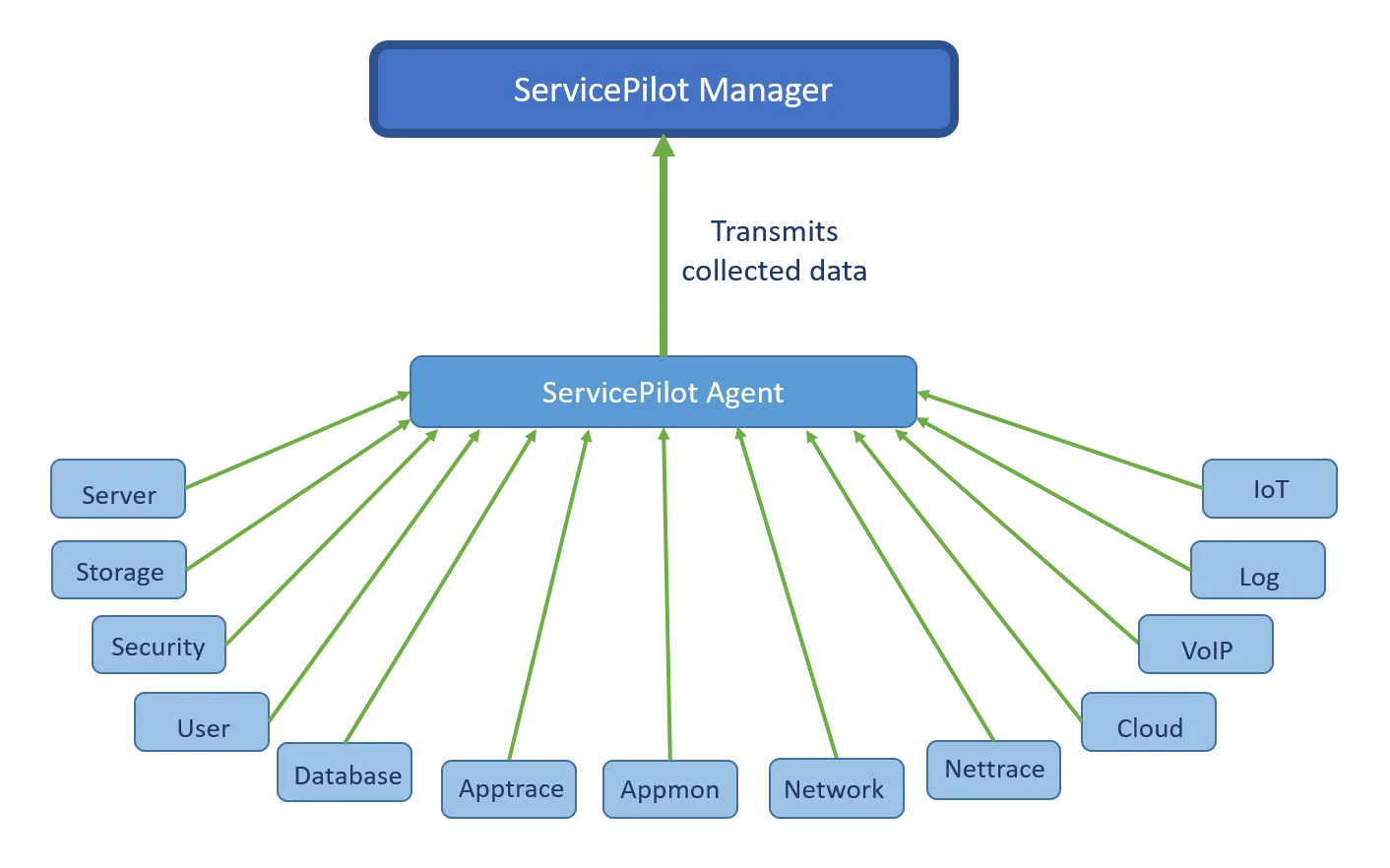 |
ServicePilot Agent types
The table below lists the different types of ServicePilot agents, their platforms, their primary uses, and their technical specifications.
| Agent | Minimum versions and platforms | Main Function |
|---|---|---|
| Windows Agent | Windows Server from 2012 R2 | • Local or remote data collection • Receiving unsolicited events |
| Linux Agent | Linux from Ubuntu 16.04 / Debian 10 / CentOS Stream 9 / RHEL 7 or 8.7 minimum / Fedora 39 / Raspberry Pi OS 10 | • Local or remote data collection • Receives unsolicited events |
| Docker Agent | Linux Agent for Docker containers and Kubernetes Pods | • Local data collection • Official Docker image • Ideal for orchestrated environments |
| z/OS Agent | IBM z/OS from v1r5 to v3r2 | • Advanced data collection on mainframes • Requires NBA for z/OS (Full Edition) • Can run as a standalone agent |
| Endpoint Agent | From Windows 10 x64 | • PC hardware & software inventory • Lightweight, targeted data collection |
| Webkit Agent | Node.js Puppeteer y Playwright | • Scenarios and test measurement of HTTP/HTTPS requests • Scripting required |
| Open Source Agent | Via Windows or Linux Agent | • Gateway to open source agents • The Agent can aggregate and forward data from third-party agents |
| Status Monitor | Windows Desktop | • Real-time alert visualization • ServicePilot interface extension • Downloadable from the user menu |
ServicePilot Agent installation
Download ServicePilot Agents
- Using a user with admin privileges, log in to ServicePilot.
- Click on Agents > Install an agent.
- Select the Agent to install and follow the instructions under Get started.
Obtain a ServicePilot API key
ServicePilot Agents communicate with ServicePilot using an API key. Multiple API keys may be created and used but each Agent needs to be configured with a valid write capable API key. To view the API keys that can be used, go to the API keys web page:
- Using a user with admin privileges, log in to ServicePilot.
- Open SETUP > Parameters.
- Click on API keys.
- Note an API key with Write authorization.
Install ServicePilot Agent
The installation of the Windows Agent is described in more detail in the product modal dedicated to this agent.
Download the Windows Agent from SETUP > Agents > Install an agent > Windows Agent > Start.
Get a Write API key.
Double-click the file to run the program using the graphical installation or use the command-line.
Set the parameters so that the ServicePilot Agent can communicate with ServicePilot.
Parameter Description API key A write authorized API key as found in the list of API keys listed above Remote Command Do not enable this parameter unless a monitored resource requires this ability. Package descriptions will indicate when this is required 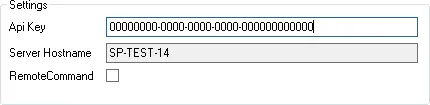
Parameter Description Use proxy If access to ServicePilot requires a web proxy then enable this option and complete the proxy address and port fields Address Specify the IP Address of the proxy Port Specify the port of the proxy Username Specify a username to allow proxy access, if required Password Specify a password to allow proxy access, if required Use SP proxy If access to ServicePilot requires a ServicePilot proxy then enable this option and complete the proxy URL field URL Specify the URL of an accessible ServicePilot proxy 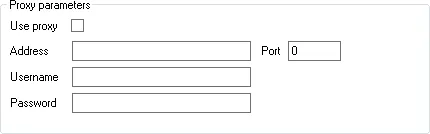
Verify that the agent appears on the Agents list.
The installation of the Linux Agent is described in more detail in the product modal dedicated to this agent.
- Download the Linux Agent from SETUP > Agents > Install an agent > Linux Agent > Start.
For x64 the file is calledservicepilotlinuxagent.run.
For ARM the file is calledservicepilotlinuxarmagent.run. - Get a Write API key.
- Make sure that the file is executable and become root to be able to run the self-extracting archive. At the end of the installation, the script will ask for an API key.
- Set the parameters so that the ServicePilot Agent can communicate with ServicePilot. You may stop and start the
spagentservice using your Linux distribution’s standard commands. - Verify that the agent appears on the Agents list.
# chmod +x servicepilotlinuxagent.run
# ./servicepilotlinuxagent.run

Creating directory _agent_files
Verifying archive integrity...  100%   All good.
Uncompressing ServicePilot Linux Agent Package  100%
spagent install script running
No configuration found, awaiting input
Enter API KEY

10000000-0000-0000-0000-000000000000

Use web proxy? [default: n]

n

Use ServicePilot proxy? [default: n]

n

Run in debug mode? [default: n]

n

Enter ServicePilot Agent Log Path [default: '/var/log/servicepilot/']

/var/log/servicepilot/

This is debian based distro
Removing spagent files
Removing dotnetcoreagent files
Reset spagent
Created symlink /etc/systemd/system/multi-user.target.wants/spagent.service → /etc/systemd/system/spagent.service.
spagent started

#
For a full list of command line parameters, run the installer with the -- --help option.
./servicepilotlinuxagent.run -- --help
The installation of the Docker Linux Agent is described in more detail in the product modal dedicated to this agent in SETUP > Agents > Install an agent > SP Docker Agent > Start.
Copy the ServicePilot Docker Agent (
servicepilot/agent) image from Docker Hub to your private registry.Get a Write API key.
The spagent Auto-provisioning rule that applies to ServicePilot Agents used for Docker supervision needs the Docker / Kubernetes option enabled.
Install the Docker Agent.
To monitor Docker the ServicePilot Linux Agent needs to be installed on the Docker hosts, not inside Docker containers. The Docker container hostname will need to be unique so that it may be configured correctly.
Connecting a ServicePilot Agent container to the ServicePilot SaaS offering will require a
SERVICEPILOT_API_KEYto be set. Proxy environment variables may also be added:docker run --detach --hostname spagent1 -e SERVICEPILOT_API_KEY=10000000-0000-0000-0000-000000000000 servicepilot/agent:latestFor On-premise deployments
SERVICEPILOT_API_KEY,SERVICEPILOT_IPandSERVICEPILOT_PORTenvironment variables are required. Proxy environment variables may also be added:docker run --detach --hostname spagent1 -e SERVICEPILOT_API_KEY=00000000-0000-0000-0000-000000000000 -e SERVICEPILOT_IP=servicepilot.company.com -e SERVICEPILOT_PORT=443 servicepilot/agent:latestSet the parameters so that the ServicePilot Agent can communicate with ServicePilot.
An example
docker-compose.ymlfile is provided for use withdocker-compose up --detach. This definition includes the ServicePilot Agent container and an optional Watchtower container configured to keep the ServicePilot Agent container up-to-date.Sample docker-compose.yml
services:

	## ServicePilot Agent
	spagent:
		image: "servicepilot/agent:latest"
		hostname: spagent1
		environment:
			SERVICEPILOT_API_KEY: "10000000-0000-0000-0000-000000000000"
			SERVICEPILOT_IP: "data.servicepilot.com"
			SERVICEPILOT_PORT: "443"
			PROXYENABLE: "0"
			PROXYADDRESS: "127.0.0.1"
			PROXYPORT: "8888"
			PROXYUSERNAME: ""
			PROXYPASSWORD: ""
			SPPROXYENABLE: "0"
			SPPROXYADDRESS: ""
		labels:
			com.centurylinklabs.watchtower.enable: true
		restart: unless-stopped

	# Watchtower to upgrade ServicePilot Agent Docker
	watchtower:
		image: "containrrr/watchtower"
		volumes:
			- /var/run/docker.sock:/var/run/docker.sock
		environment:
			# https_proxy: "http[s]://user:pass@proxy-address:port"
			WATCHTOWER_LABEL_ENABLE: 1
			WATCHTOWER_POLL_INTERVAL: 86400
			WATCHTOWER_CLEANUP: 1
			WATCHTOWER_INCLUDE_RESTARTING: 1
			WATCHTOWER_INCLUDE_STOPPED: 1
			WATCHTOWER_REVIVE_STOPPED: 1
		restart: unless-stopped
Verify that the agent appears on the Agents list.
The installation of the Kubernetes Linux Agent is described in more detail in the product modal dedicated to this agent in SETUP > Agents > Install an agent > SP Docker Agent > Start.
The ServicePilot Linux Agent may be run in a Kubernetes Pod.
The Kubernetes Pod hostname will need to be unique so that it may be configured correctly.
Note: Running a ServicePilot Agent in a Kubernetes Pod will limit its abilities to remote polling and obtaining Kubernetes information.
Deploy a ServicePilot Agent DaemonSet to the Kubernetes cluster. Note the SERVICEPILOT_* environment variables that need to match your ServicePilot deployment. For ServicePilot SaaS SERVICEPILOT_IP should be data.servicepilot.com. For On-premises deployments SERVICEPILOT_API_KEY, SERVICEPILOT_IP and SERVICEPILOT_PORT environment variables are required.
To monitor the Kubernetes environment, set a unique resource name in the SP_K8_RESOURCE environment variable. SP_K8_NAMESPACE_FILTER and SP_K8_POD_FILTER variables are optional and provide filters for Namespace and Pod names. The spagent Auto-provisioning rule that applies to ServicePilot Agents used for Kubernetes supervision needs the Docker / Kubernetes option enabled.
Kubernetes configuration example
# Create a namespace for ServicePilot components
apiVersion: v1
kind: Namespace
metadata:
  name: spagent
  labels:
    app: servicepilot-agent
---
# ServicePilot API Key secret
apiVersion: v1
kind: Secret
metadata:
  name: spagent
  namespace: spagent
  labels:
    app: servicepilot-agent
type: Opaque
stringData:
  apikey: "10000000-0000-0000-0000-000000000000"
---
apiVersion: v1
kind: ServiceAccount
metadata:
  name: spagent
  namespace: spagent
  labels:
    app: servicepilot-agent
---
# To have ServicePilot retrieve metrics from Kubelets with authentication and
# authorization enabled (which is highly recommended and included in security
# benchmarks) the following flags must be set on the kubelet(s):
#
# --authentication-token-webhook
# --authorization-mode=Webhook
#
apiVersion: rbac.authorization.k8s.io/v1
kind: ClusterRole
metadata:
  name: spagent:stats-viewer
  # ClusterRoles are not namespaced
  labels:
    rbac.authorization.k8s.io/spagent_stats-viewer: "true"
rules:
  - apiGroups: [""]
    resources:
      - nodes
      - nodes/proxy
      - nodes/metrics
      - nodes/stats
      - services
      - endpoints
      - pods
      - ingresses
      - configmaps
      - persistentvolumes
    verbs: ["get", "list", "watch"]
  - apiGroups: ["extensions", "networking.k8s.io"]
    resources:
      - ingresses/status
      - ingresses
    verbs: ["get", "list", "watch"]
  - apiGroups: ["metrics.k8s.io"]
    resources:
      - pods
    verbs: ["get", "list", "watch"]
  - nonResourceURLs:
      - "/metrics"
    verbs: ["get"]
---
apiVersion: rbac.authorization.k8s.io/v1
kind: ClusterRole
metadata:
  name: spagent:agent
  # ClusterRoles are not namespaced
  labels:
    app: servicepilot-agent
aggregationRule:
  clusterRoleSelectors:
    - matchLabels:
        rbac.authorization.k8s.io/spagent_stats-viewer: "true"
    - matchLabels:
        rbac.authorization.k8s.io/aggregate-to-view: "true"
rules: [] # Rules are automatically filled in by the controller manager.
---
apiVersion: rbac.authorization.k8s.io/v1
kind: ClusterRoleBinding
metadata:
  name: spagent:agent
  # ClusterRoleBindings are not namespaced
  labels:
    app: servicepilot-agent
subjects:
  - kind: ServiceAccount
    name: spagent
    namespace: spagent
roleRef:
  apiGroup: rbac.authorization.k8s.io
  kind: ClusterRole
  name: spagent:agent
---
# ServicePilot Agent deployment
apiVersion: apps/v1
kind: DaemonSet
metadata:
  name: spagent
  namespace: spagent
  labels:
    app: servicepilot-agent
spec:
  selector:
    matchLabels:
      app: servicepilot-agent
  template:
    metadata:
      # This app label set to servicepilot-agent is critical to the operation of the ServicePilot Agent
      labels:
        app: servicepilot-agent
    spec:
      tolerations:
      # this toleration is to have the daemonset runnable on master nodes
      # remove it if your masters can't run pods
      - key: node-role.kubernetes.io/control-plane
        operator: Exists
        effect: NoSchedule
      - key: node-role.kubernetes.io/master
        operator: Exists
        effect: NoSchedule
      serviceAccountName: spagent
      containers:
        - name: spagent
          image: servicepilot/agent
          resources:
            requests:
              cpu: 200m
              memory: 256Mi
              ephemeral-storage: 200M
            limits:
              cpu: 500m
              memory: 512Mi
              ephemeral-storage: 500M
          env:
            - name: SERVICEPILOT_API_KEY
              valueFrom:
                secretKeyRef:
                  name: spagent
                  key: apikey
            - name: SERVICEPILOT_IP
              value: "sp1.servicepilot.com"
            - name: SERVICEPILOT_PORT
              value: "443"
            - name: NODE_NAME
              valueFrom:
                fieldRef:
                  fieldPath: spec.nodeName
            - name: NODE_IP
              valueFrom:
                fieldRef:
                  fieldPath: status.hostIP
            - name: HOSTNAME
              value: $(NODE_NAME)-pod
            - name: SP_K8_RESOURCE
              value: "K8"
            - name: SP_K8_NAMESPACE_FILTER
              value: "*"
            - name: SP_K8_POD_FILTER
              value: "*"
          ports:
            - name: otlp-http
              protocol: TCP
              containerPort: 4318
---
# ServicePilot Agent OpenTelemetry Port (if using OTEL APM)
apiVersion: v1
kind: Service
metadata:
  name: spagent
  namespace: spagent
  labels:
    app: servicepilot-agent
spec:
  type: ClusterIP
  selector:
    app: servicepilot-agent
  ports:
    - name: otlp-http
      protocol: TCP
      appProtocol: http
      port: 4318
      targetPort: otlp-http
The installation of NBA for z/OS and the z/OS agent are covered in more details in the Mainframe section of the documentation.
The installation of the Endpoint Agent is described in more detail in the product modal dedicated to this agent.
- Download the Endpoint Agent from SETUP > Agents > Install an agent > Endpoint Agent > Start.
- Get an API key.
- Add an auto-provisioning rule.
- Install the Agent using the graphical installer or the command line.
- Verify that the agent appears on the Endpoint inventory page within 15 minutes.
The installation of the Webkit Agent is described in more detail in the product modal dedicated to Playwright or Puppeteer in SETUP > Agents > Install an agent > Webkit Agent > Start.
Check that a ServicePilot Agent is working
To make sure that the ServicePilot Agents are communicating correctly with ServicePilot, open the Agents web page:
- Using a user with admin privileges, log in to ServicePilot.
- Open SETUP > Agents.
- The Agent should appear in the list with either a yellow or green status and a Last seen value within a few seconds. A yellow status indicates that the Agent has yet to be given anything to do.
Set the Default agent
When provisioning resources, at least one ServicePilot Agent can be set to indicate to perform that resource monitoring on the same machine as the resource or from remote Agents.
If the Agent fields are left blank then the Default agent will be used to monitor the resource.
To change the ServicePilot Default agent:
- Using a user with admin privileges, log in to ServicePilot.
- Open SETUP > Agents.
- Click on the edit icon for the Default agent field.
- Select the new Default agent.
- Click OK.
Set a Backup agent
Optionally, a Backup agent can be set that will take over the monitoring responsibilities of the Default agent after a new minutes if the Default agent looses connectivity with the ServicePilot Manager. The Backup agent needs to be in a position to access all of the same resources as the Default agent and be installed on the same OS type as the Default agent.
To change the ServicePilot Backup agent:
- Using a user with admin privileges, log in to ServicePilot.
- Open SETUP > Agents.
- Click on the edit icon of the Backup agent field.
- Select the new Default Agent.
- Click OK.
The Backup agent cannot be the same value as the Default Agent.
ServicePilot Agent SPProxy
The SPProxy is a ServicePilot Agent proxy role that can act as a gateway and concentrator between several ServicePilot Agents and the ServicePilot Manager. In distributed environments and low-bandwidth remote sites, it greatly simplifies deployment because agents connect locally to the proxy. It helps with:
- Pooling and optimizing traffic: SPProxy aggregates and compresses communications from agents at the same site before transmitting them. With fewer simultaneous connections to the central server, it lowers bandwidth consumption and provides faster exchanges.
- Security and flow simplification: By consolidating outgoing communications, remote agents no longer need to open external sessions individually thus reducing exposure by limiting direct connections between the site and the ServicePilot platform. It provides end-to-end, systematic encryption of exchanges for all connected agents.
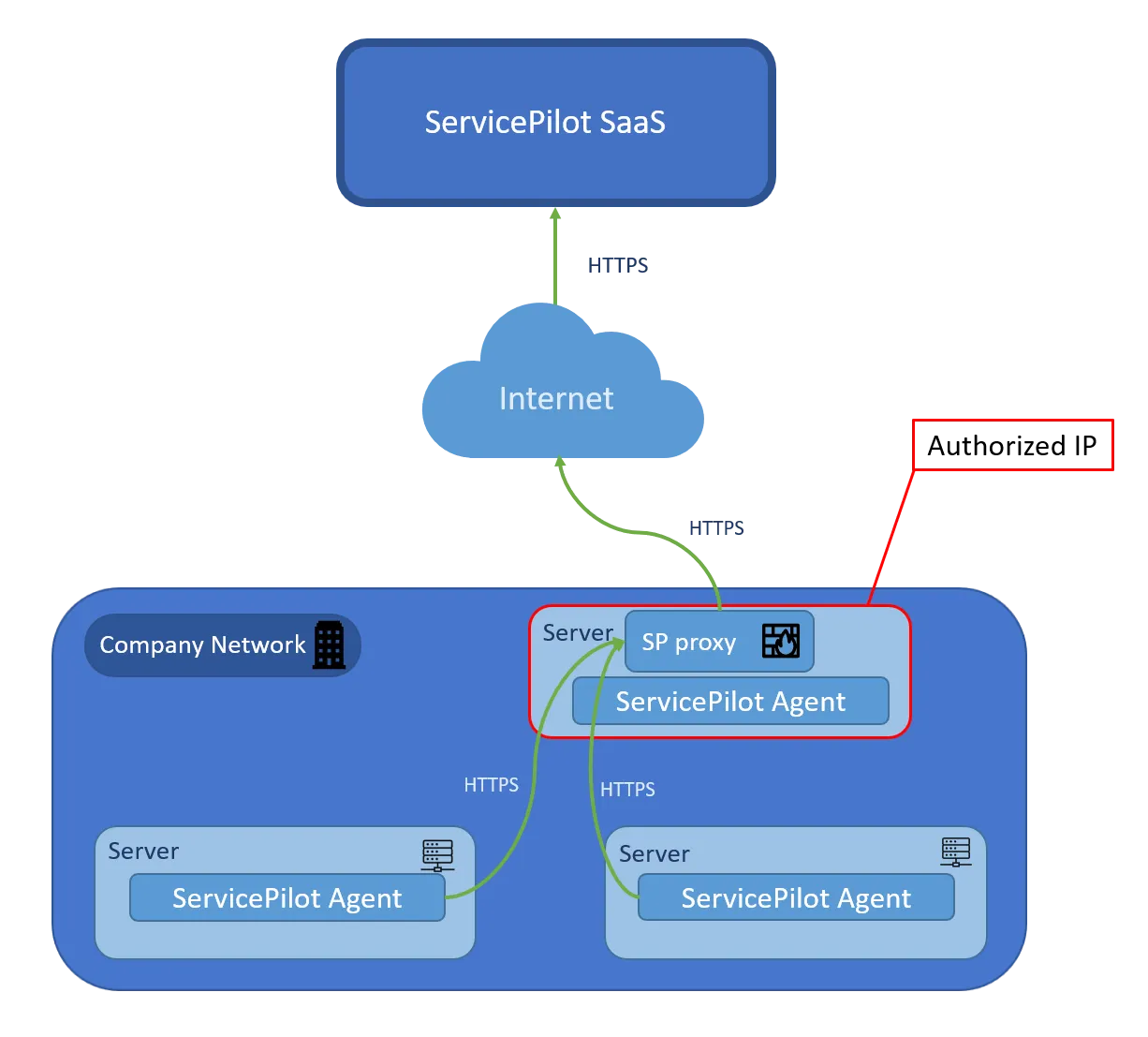
If ServicePilot Agents are not allowed to communicate with ServicePilot based on firewall restrictions, a ServicePilot Agent proxy can be deployed. Only the ServicePilot Agent proxy needs to be given access to the ServicePilot Manager while the ServicePilot Agents will be configured to send traffic to the proxy.
The SPProxy has a local cache for the files needed by the agents to update them centrally while allowing the platform to maintain a consolidated view of all remote sites.
Please contact our Support ([email protected]) if you want to setup a ServicePilot Agent proxy.
ServicePilot Agent logs
ServicePilot Agent logs may indicate connectivity errors between the ServicePilot Agent and ServicePilot or they may indicate issues obtaining data from devices. These Agent logs are particularly interesting if monitoring does not appear to work between the Agent and remote devices due to bad access credentials.
Open the Agent logs with a text editor:
C:\Program Files\ServicePilot\ServicePilot ISM Enterprise\logs\ServicePilotAgent.log
/var/log/servicepilot/servicepilotagent.log
Uninstalling a ServicePilot Agent
If a ServicePilot Agent is no longer required, it can be uninstalled.
Check if an Agent is being used
- Using a user with admin privileges, log in to ServicePilot.
- Open SETUP > Agents.
- If an Agent is not used, the status is yellow meaning that it is not configured. If the Agent is still being used, clicking on the blue magnifying glass will show the Agent details including the Agent data. This will list the resources that are currently using this Agent.
ServicePilot Agent uninstallation
To uninstall a ServicePilot Windows Agent successfully, make sure that it is stopped before removing it.
- Stop the ServicePilotAgent service.
- Uninstall the ServicePilot Agent from the Windows Programs and Features control panel.
- Optional: You may delete the
C:\Program Files\ServicePilotdirectory if you do not want to keep the Agent logs. - Optional: If you do not want to re-install a ServicePilot Agent then you may remove the
HKEY_LOCAL_MACHINE\SOFTWARE\ServicePilot Technologiesregistry key.
Make sure that the ServicePilot Linux Agent is not used before removing it.
./servicepilotlinuxagent.run -- --uninstall
Remove uninstalled Agents from the Agent list
When an Agent is uninstalled from a system, the associated provisioned resources (monitored items, automatically created objects, dependent configurations, etc.) remain in ServicePilot as long as the Agent is still listed in the Agents list. Removing the Agent from this list therefore allows you to cleanly delete all related resources.
As long as an Agent is still installed and active, removing it from the list will have no lasting effect: it will continue to communicate with ServicePilot and will automatically re-register.
Here are the steps to remove an uninstalled Agent:
- Using a user with admin privileges, log in to ServicePilot.
- Open SETUP > Agents.
- Click on the orange waste bin icon followed by the Delete button to remove an Agent from the Agent list.
- ⚠️ Deleting the Agent with this method automatically removes the provisioned resources associated with it.
