Data explorer
ServicePilot provides access to the data it collects as graphs, tables and summaries as well as the raw data as stored in its databases. All of this is filtered and categorized to produce useful statistics.
When deploying resources, the package templates come with pre-defined dashboards to display information related to these resources. These dashboards might already show the information you require but it is possible to refine these searches or create completely new queries.
Data types
There are two main data types for information stored by ServicePilot in its databases:
- String fields store text.
- Integer fields store numerical data.
Indicator thresholds
When testing thresholds, String indicators can only use the = and <> operators while Integer indicators can also be checked using < and > to see if the value is greater or less than a limit.
As well as fixed thresholds, Integer indicators can also have thresholds set against analytical analysis of the data series. If machine learning spikes or cluster alerts are detected, these can also set indicator status.
More information about data anomalies can be found under What is a threshold?
Database Query operators
When extracting data from the ServicePilot database, a number of series of data are collected to be presented. Each series is collected within the same time period specified. Either a Field is specified and a Field Statistic operator or a Formula is applied to the data.
Field statistics
Field Statistics are limited by the type of data being queried.
Field statistics table
| Data Type | Field Statistic | Use |
|---|---|---|
| String & Integer | Count | Count the number of records in the database that contain this field within the time period specified. Not all records in the database contain all of the fields. If a count of all records is needed, count with the id index field that is present in all records. |
| First value | Obtain the first value of the field selected within the time period specified. | |
| Last value | Obtain the last value of the field selected within the time period specified. | |
| Missing data | Count the number of records in the database that do not contain this field within the time period specified. | |
| Unique | Count the number of different values that the field selected takes within the time period specified. | |
| Integer only | Sum | Sum all of the values for the field specified within the time period specified. |
| Mean | Find the average for all of the values of the field specified within the time period specified. | |
| Min | Find the smallest value from all of the values of the field specified within the time period specified. | |
| Max | Find the largest value from all of the values of the field specified within the time period specified. | |
| Sum2 | The squared sum all of the values for the field specified within the time period specified. | |
| Percentile | An estimated value for the specified percentile from all of the values for the field specified within the time period specified. For example: The 20th percentile is the value below which 20% of the observations may be found. | |
| Spike | Count the number of values that start falling outside a dynamically calculated range around the plot of values from the field specified. | |
| Trend1 | A sliding trend expressed in as a percentage for the field specified. | |
| Trend30 | A sliding trend over 30 days expressed in as a percentage for the field specified… | |
| Prediction | A time forecast as to when this field will cross the critical threshold associated with this indicator. |
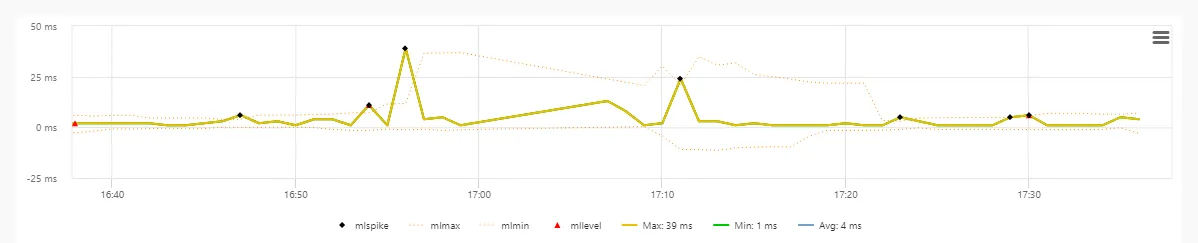
The more complicated statistical functions are best represented graphically using an example graph. This graph plots one indicator with associated range and spikes outside the range.
Functions
Rather than obtaining a statistic directly from the data, a function can be applied to create a new series from the existing series.
Example:
A series is defined obtaining the sum of inbound network traffic and a second series is defined, obtaining the sum of outbound traffic. A third series is then defined as the sum of the first two series so that total traffic can be viewed.
List of functions
Count
| Function | Use | Example |
|---|---|---|
| termfreq | Returns the number of times the term appears in the serie. | termfreq(fieldname,term) |
Info
| Function | Use | Example |
|---|---|---|
| viewpath | Returns the view path of an object, a view or a resource defined in a serie. | viewpath(s0) |
| status | Returns the real-time status of an object or a resource defined in a serie. | status(s0) |
| url | Creates a URL shortcut. Variables can be used e.g. url(‘/appmap?application={s0}’,‘_blank’). {value} can be used to retrieve the groupby value. | url('url{value|s0}','_blank') |
Statistics
| Function | Use | Example |
|---|---|---|
| describe.N | Returns the number of elements in a serie. | describe.N(s0) |
| describe.min | Returns the minimum (smallest value) in a serie. | describe.min(s0) |
| describe.max | Returns the maximum (largest value) in a serie. | describe.max(s0) |
| describe.sum | Returns the sum of values in a serie. | describe.sum(s0) |
| describe.sumsq | Returns the sum of the squares of the values in a serie. | describe.sumsq(s0) |
| describe.mean | Returns the mean (average) of the values in a serie. | describe.mean(s0) |
| describe.var | Returns the variance of values in a serie. | describe.var(s0) |
| describe.stdev | Returns the standard deviation of values in a serie. | describe.stdev(s0) |
| describe.geometricMean | Returns the geometric mean of a serie containing only positive values. | describe.geometricMean(s0) |
| describe.popVar | Returns the population variance of the values in a serie. | describe.popVar(s0) |
| describe.skewness | Returns the skewness of the values in a serie. | describe.skewness(s0) |
| describe.kurtosis | Returns the kurtosis of the values in a serie. | describe.kurtosis(s0) |
| corr | Correlation of 2 numeric series of equal sizes. Correlation values closer to 0 indicate a low correlation and correlation values closer to ±1 indicate high correlation. Positive values indicate direct correlation and negative values indicate inverse correlation. | corr(s0,s1) |
| finddelay | Finddelay uses convolutional math to compute the cross-correlation vector and then computes the delay between the two series. | finddelay(s0,s1) |
| sub-groupby-filter | Returns a value in a serie grouped by the groupbyseries. Sub-groupby-filter: min, max, first, last. Limit: one sub-groupby-filter per widget. | sub-groupby-filter(s0,groupbyseries) |
Mathematics
| Function | Use | Example |
|---|---|---|
| sum | Returns the sum of values: series or numbers. | sum(series0,series1,...) |
| sub | Returns the substraction of values: series or numbers. | sub(series0,series1,...) |
| product | Returns the product of values: series or numbers. | product(series0,series1,...) |
| div | Divides one value or series by another or numbers. | div(series0,series1) |
| abs | Returns absolute value of a serie. | abs(s0) |
| cos | Returns the trigonometric cosine of a serie. | cos(s0) |
| sequence | Generates a list of sequential numbers where length is the number of elements, start is the first value and stride is the increment between each element in the sequence. | sequence(length,start,stride) |
Smoothing
| Function | Use | Example |
|---|---|---|
| movingAvg | Calculates a simple moving average over a sliding window of data defined as window size. | movingAvg(s0,window size) |
| movingMedian | Calculates the moving median of the sliding window of data defined as window size. | movingMedian(s0,window size) |
Transformation
| Function | Use | Example |
|---|---|---|
| minMaxScale | Scales numeric serie within a minimum and maximum value. Min and Max values optional, default 0 to 1. | minMaxScale(s0,min,max) |
| regress | Returns the linear regression of the values in a serie. | regress(s0) |
| predict | Uses the regression model to calculate predictions for the next p periods (default p=1) e.g predict(s0,2), where s0 is a series of indicator values collected over a period of 30 minutes, will calculate the predicted indicator values for the next 2 periods of 30 minutes i.e. the next 60 minutes. | predict(s0,p) |
| cov | Computes the covariance of two numeric series of equal sizes. | cov(s0,s1) |
| distance | Computes the overall distance of two numeric series of equal sizes. | distance(s0,s1) |
| diff | Computes the differences between consecutive values in a serie based on lag. Lag value is optional and defaults to 1. | diff(s0,lag) |
Timeserie
| Function | Use | Example |
|---|---|---|
| per_second | Metric is changing per second. | per_second(s0) |
| per_minute | Metric is changing per minute. | per_minute(s0) |
| per_hour | Metric is changing per hour. | per_hour(s0) |
Expression
| Function | Use | Example |
|---|---|---|
| variables | Functions cannot be used as nested expressions e.g. ‘abs(cos(s0))’. Variables should be used instead e.g. ‘a=cos(s0),abs(a)’. | s1=array(1,2,3),s2=array(4,5,6),sub(s2,s1) |
Custom database queries
As well as widgets querying the ServicePilot database in dashboards and PDF reports ad-hoc queries can be run from the Data explorer menu. These queries can be refined to create new widgets if needed. The data returned will always be filtered automatically based what a particular user is allowed to monitor.
There are two ways in which queries can be made.
- Widget with Lucene syntax: Lucene queries use the Apache Lucene query syntax. Data can then be presented in many forms. The query and the presentation form together are represented as widget definitions.
- Query with simple SQL syntax: Simple SQL queries extract a single series of data based on a database with a selection criteria, a grouping operator and a filter. The data is presented in the form of a table that can be exported in CSV format.
Perform a Lucene query
To perform Lucene queries, use the Widget section in the Data explorer page to define both your query and data presentation in the form of a widget.
A query is broken up into terms and operators. Multiple terms can be combined together with Boolean operators to form a more complex query. You can search any field by typing the field name followed by a colon : and then the term you are looking for.
In case of a string type field, if you are querying on a term with a space in it you must either quote it with double quotes "" or escape spaces with a backslash \. For example to search the term “Windows Server Performance CPU” in the “class” field you can either type:
class:"windows server performance cpu" or class:windows\ server\ performance\ cpu
Wildcards
ServicePilot’s query engine supports single and multiple character wildcard searches. Wildcard characters can be applied to single terms, but not to search phrases:
- The special character
?allows searching for a single character (matches a single character). The search stringte?twould match both “test” and “text”. - The special character
*allows searching for multiple characters (matches zero or more sequential characters):- A
tes*search would match “test”, “testing”, “tested”, “tester”, etc. - A
te*tsearch would match “test” and “text”. - A
*estsearch would match “nest”, “pest”, “rest”, “test”, etc.
- A
Special characters
Special characters can be used in search fields, as long as they are escaped using a backslash \, so they are not interpreted as operators.
The following list shows the special characters that need to be escaped:
+ - && || ! ( ) { } [ ] ^ " ~ * ? : \
For example, the following query will look for all the documents which “status” field contains “-”: status:\-.
Mathematical operators
Mathematical operators can be used to perform calculation:
| Operator | Description | Example |
|---|---|---|
| > | Greater than | cpu load>80 |
| < | Less than | cpu load<80 |
| = | Equal to | duration=3600 |
| <> | Different from | duration<>3600 |
| >= | Greater than or equal to | duration>=3600 |
| <= | Less than or equal to | duration<=3600 |
Boolean operators
Boolean operators allow you to apply Boolean logic to queries, requiring the presence or absence of specific terms or conditions in fields in order to match documents.
| Boolean operator | Description | Example |
|---|---|---|
| AND | Requires both terms on either side of the Boolean operator to be present in the specified fields for a match. | class:"windows server performance cpu" AND cpu load>80 |
| NOT | Requires that the following term not be present in the specified field. | NOT severity:error |
| OR | Requires that either term (or both terms) be present in the specified field for a match. | severity:error OR severity:warning |
| + | Requires that the following term be present in the specified field. | +objecttype:object +object:acm* |
| - | Prohibits the following term (that is, matches on fields or documents that do not include that term). | +objecttype:object AND -object:*agents |
Range searches
A range search specifies a range of values for a field (a range with an upper bound and a lower bound). Range queries can be inclusive or exclusive of the upper and lower bounds. The brackets around a query determine its inclusiveness.
- Square brackets
[ ]denote an inclusive range query that matches values including the upper and lower bound. The following query example will look for all durations that fall between 3,600 seconds and 10,800 seconds included:duration:[3600 TO 10800]. - Curly brackets
{ }denote an exclusive range query that matches values between the upper and lower bounds, but excluding the upper and lower bounds themselves. The following query example will look for all durations that fall between 3,600 seconds and 10,800 seconds excluding these values:duration:{3600 TO 10800}.
You can mix these types so one end of the range is inclusive and the other is exclusive. Range queries are not limited to date fields or even numerical fields.
Perform an SQL query
To perform a simple SQL query in one of the ServicePilot databases go to the Data explorer page.
- Open the SQL page.
- Change the time span to the smallest time period to reduce query times while developing a new custom query.
- Set the SELECT, FROM and GROUP BY fields as well as an optional WHERE or select one of the examples provided.
- Add a query filter and click on Apply.
When a group of data is selected in the presented response, it is possible to Copy the result or to Export it in a csv format.
Create custom widgets
If the existing dashboards do not present the data in the form you want, new custom widget can be created and stored for use in custom dashboards and PDF reports. See the Dashboards page for more details.
Select widget source data
- Start by opening the Widget page.
- Change the time span to the smallest time period to reduce query times while developing a new custom query.
- Select one of the available Examples as a starting point, based on the data to be queried. Templates are organised by the collection in which the data is stored. Existing custom searches are presented at the bottom of the list under Display.
- Select the Display menu.
- Click on the Documents view button to see the raw data as it is found in the database.
- View all available fields for a record by clicking on the table icon at the beginning of the line.
- To change the way in which the events are presented, click on the Properties button and select which data to show and highlight in the table as well as toggling the graph visibility.

It is possible to present this data directly as a table of records, however it is almost always more useful to filter, summarize, sort and graph the data.
Define widget data series
Series can be added, modified and deleted from the Series list above the widget.

A number of different series might be defined and displayed in the same widget. Each series has three critical parameters; Field or formula, Field Statistic and Title.

Other series parameters depend on these initial settings. Note the Table and Heat map tabs in the Series Settings Dialog contain further settings for how this series data will be presented.
Widget data presentation
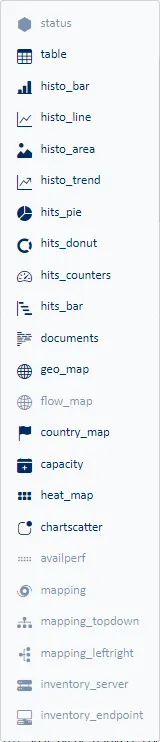
Once the data is selected and filtered, it can be presented in many different ways. Use the Display menu to select how the data is to be visualized.
Widget data presentation detail
| View Type | Use |
|---|---|
| Table | Display each series as a column in the table. The rows in the table are defined by the Group by filter. |
| Histo_bar | Display of a bar chart over time. The series are stacked on top of each other. |
| Histo_line | Display of a line per series and stacking them in a graph over time. |
| Histo_area | Similar to the Bar Chart, the Area Chart displays stacked series over time, except in the case of zone charts. |
| Histo_trend | Display trend lines for each series over time. |
| Hits_pie | Display a pie chart in which each slice represents the value of a series. The size of each slice will be a relative percentage of all values in the series. |
| Hits_donut | Display a pie chart in which each slice represents the value of a series. The size of each slice will be a relative percentage of all values in the series. |
| Hits_Counters | Display a single value for each series from all data in the specified time interval. |
| Hits_bar | Display a graph of the series data. Each series will produce a vertical bar on the graph. |
| Documents | Display of the raw list of records in the database, one per line. A bar chart of the data can also be included. |
| Geo Map | Display of a map with geolocated pins grouping together the records for each IP address. |
| Flow Map | Display of a map with geolocated pins grouping together the records for each IP address. |
| Country Map | Display of a map grouping records by country based on IP addresses. |
| Capacity | Display trend changes in a series in a table with an indication of when an item is expected to cross the critical threshold, if defined. |
| Heat map | Display of the values of a series over time in the form of a number of colored squares, with the shade of the square representing the value. |
| Chartscatter | Scatter plot comparing one series to another series. Each point on the graph is defined by the Group by filter. |
| AvailPerf | Display of the availability and performance of views or objects over time. The rows in the table are defined by the Group by filter. |
| Mapping | Display of a map linking different elements. Values are presented for each series in a relationship between two elements. Each series will produce a graph according to the selected graph type. |
Manage widget buttons
Widgets templates may be copied, cloned, edited, saved and deleted using buttons at the top right of the Widget page. Once saved, custom widgets can then be used to build dashboards and PDF report templates.

| View Type | Use |
|---|---|
| Stats info | Tables of information relating to the sources of data, data resolution and presentation methods available relating to data sources. |
| Copy | Copy the current widget definition to your clipboard as a JSON widget definition. This can be pasted into a dashboard or PDF report template of into the JSON widget editor accessible via the JSON button. |
| JSON | Open the JSON widget definition editor. The widget may be edited as text in this dialog. When OK is pressed, the Widget web page will update to reflect changes made to the widget definition. |
| Delete | If a custom widget template was selected, this template may be deleted from the list with this button. |
| Save | Once a new widget has been developed and tested, it can be given a name to save it to the custom widget list. Selecting an existing name will overrite a custom widget template or providing a new name will create a new template. Custom widget names can be selected when editing dashboards and PDF report templates. |
Note: When a widget is imported into a dashboard or PDF report template, a copy of the definition is taken. This means there is no link between the custom widget definition and the dashboard or PDF report template into which it was included.
