Dashboards
What are dashboards?
Dashboards are spaces organized in a grid layout where each widget displays a specific visualization of the collected data. They allow you to extract, group and present statistics from monitoring, thereby providing a summary or detailed view of the monitored environment.
Depending on your needs, a dashboard can provide a global overview, a grouping of items from the same package or specific information about a particular monitored item. ServicePilot offers four types of dashboards:
| Type | Description |
|---|---|
| Global | Overview dashboards, summarizing the status of an aspect of the supervision. For example: A summary of the availability and performance of all monitored components or a table counting the number of objects by object class. |
| Package | Per package summary dashboards. These dashboards provide statistics for all resources of the same type. For example: A summary of all Windows Servers, listing those that have the highest CPU, Memory and Disk usage. |
| Resource | A per resource dashboard. These dashboards collate information from just one resource, highlighting important statistics based on the resource type. For example: A network router will have a dashboard detailing the important statistics for this particular router. |
| Custom | Custom dashboards may be created by users to include any widgets they are interested in. Admin users can see all custom dashboards and can make a Custom dashboard available to all users. |
Where to find dashboards?
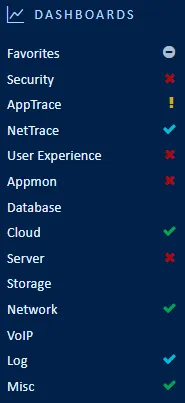
The DASHBOARDS section in the left-hand menu lists all dashboards associated with installed packages. It displays the different package categories, and within each category, the dashboards for each package and each resource.
These dashboards are automatically generated based on the provisioned resources.
| Level | Type | Description |
|---|---|---|
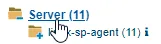 |
Package category | General dashboards showing key metrics for resources in the same category. |
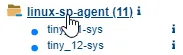 |
Package | Dashboards summarizing statistics for all resources of the same type. |
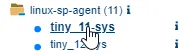 |
Resource | Dashboards showing important statistics for the resource. |
The Favorites submenu provides access to several types of dashboards that are not necessarily linked to a package category:
| Type | Description |
|---|---|
| Generic | Dashboards provided by ServicePilot that are independent of packages, accessible from the top submenu (Portal, Service, Incidents, Packages, Top Objects, Uptime, TV). |
| Favorites | Dashboards marked as favorites by the user. |
| Your dashboards | Custom dashboards visible to the user. |
| Account Dashboards | Custom dashboards visible to the group to which the user belongs. |
| Global Dashboards | Standard ServicePilot dashboards. |
The dashboards for Packages and Resources are also accessible from the Dashboards section of an object modal.
Time span
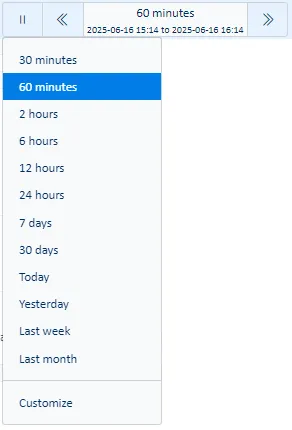
Whenever queries are made for historical data, there is always a time span filter presented at the top left of the screen. All queries will be made based on this filter.
To speed up queries, always select the smallest time span required and only expand the time span as needed once the query is known to contain the correct data. This is particularly true of event type data rather than polled data.
Note: If no data is presented when zooming in to a shorter time period in dashboards it is possible that this data is no longer present in the database. More detailed data is kept for a shorter time that the coarser grained indicator averages. Select a larger time frame or specify a more recent time period to obtain data from the database.
The default time range is the last hour, but it can be customized in the user preferences.
Dashboard query
It is possible to further filter any dashboard by adding an extra query to the data that is already presented.
- Select the query button when viewing a dashboard.

- Add a filter and click Apply.

Use the + icon to build up more complex queries using a dialog to select the elements required. If you need help with the query syntax, open the query help using the Question mark link.
Query syntax notes
If names contain spaces, then you can use double quotes or escape the space. If you want to use wild cards then you cannot use double quotes as the wild card is then not interpreted.
object:"my server"
or
object:my\ server*
Also note that some characters have special meaning and so need to be escaped. The list of escaped characters is provided in the help.
status:\?
This request will return items that have a status set to unknown (?).
duration:[10 TO 60] AND -quality:*
This request will return records with duration between 10 and 60 inclusive that do not contain a quality indicator.
Common queries
Limit search to a part of the hierarchy
It is often useful to limit output to a part of the monitored equipment by filtering by view. If you select the view tag then this will only discover objects that are members of the view and not objects that are in all sub-views of the view selected.
view:"server - interfaces"
This request will return all objects that are in the server - interfaces view.
view3:site\ *\ servers
This request will return all objects that are under a view at level 3, and beneath, that has the pattern site * servers. A level 3 view is a view at the third level of the monitoring hierarchy. For example MAIN > Sites > Site A > Site A Servers.
Limit search to items over a limit
It can be interesting to limit results to objects with indicator values above or below a value. By including this type of filter, data that no longer matches the information will be removed which might affect other queries that do not contain this indicator.
cpu usage>3
Be careful not to add extra spaces before or after the operator.
Look for records where a field contains text
When parsing logs, it might be interesting to find all records that contain or do not contain a particular word or part of a word. Bear in mind that the match will be done at a word level and not phrases. This means it is not possible to search for a sentence like: Error: unknown type. Instead a keyword of unknown might be used as the search term.
text:error*
or
!text:*error*
Please note that these types of queries take a lot of processing time and might even timeout. Limit the time span to get results in this case.
Create a custom dashboard
Custom dashboards can only be created by users with admin privileges. A custom dashboard can be created either by cloning and then modifying an existing dashboard or by building a completely new one.
Once created, a dashboard can be made visible to a specific user, a group of users, or multiple groups, as needed.
- Using a user with admin privileges, log in to ServicePilot.
- Open SETUP > Parameters.
- Click on Reporting > Dashboards.
- Either add a new dashboard with the + Add a dashboard button or use the blue pencil icon to edit an existing dashboard.
Add widgets to a dashboard
New widgets are added to the dashboard by dragging the icon representing the new widget types to include.
Before letting go, make sure that a purple highlight appears to indicate where the new widget will be placed.

| Widget Type | Use |
|---|---|
 Title or text Title or text |
Include a title or text widget. Remember to complete the title and text fields in all languages used. |
 JSON widget definition JSON widget definition |
Widgets are defined in terms of parameters in a JSON formatted document. You may extract the JSON definition of any existing widget using the copy button on the existing widget and paste the text here. |
 Select existing widget Select existing widget |
Existing widgets from built-in dashboards or custom dashboards can be selected and a clone inserted. |
 Real-time View Real-time View |
A widget showing the current state of a particular view in the view hierarchy. |
 HTML and metadata HTML and metadata |
A widget containing valid HTML text, pictures and metadata. |
 Web page Web page |
A widget containing a web page, embedded into the dashboard as an iFrame. The content may be auto-refreshed at a defined interval. |
 Live Ping Live Ping |
A widget that will ping an IP address every couple of seconds and display the latency graph. |
Edit dashboard widget parameters
Depending on the type of widget to be modified, some editing buttons will appear to the right of the widget title.
Note: The buttons only appear when the mouse is moved over the widget title.

| Widget buttons | Use |
|---|---|
 Move widget Move widget |
Move the widget to the left. By using this action on a widget in the third column, it will move into the second column along with the existing widget. In this way it is possible to stack multiple widgets in one column against only one widget in another column. |
 Widget pop-up Widget pop-up |
Show widget content in a pop-up dialog box taking up more of the screen. This is useful to see larger views on more complex graphs. |
 Hide/Show Hide/Show |
Roll-up or Unroll the widget to just the title. |
 Export to CSV Export to CSV |
Export the raw data used to display the graph to a comma separated value (CSV) file. |
 Add series Add series |
Add a data series to the widget. |
 Options Options |
Edit widget parameters. Set the widget type and view presentation. A second dialog might be shown after editing the widget definition to set the widget title. |
 Refresh Refresh |
Refresh the content of just this widget. |
 Copy widget definition Copy widget definition |
Copy the JSON widget definition to the clipboard so that it may be viewed or re-imported as another widget. |
 Delete Delete |
Remove the widget from the dashboard. Note: If a widget is deleted by mistake, do not save the dashboard. Instead re-load the dashboard and make the correct changes. |
 Edit Edit |
Edit the widget JSON source definition. |
Custom dashboard parameters
Custom dashboard parameters can be accessed using the Parameters button.
Admin users may set a dashboard as being available to a number of groups of users. You can select multiple groups by checking the corresponding checkbox(es) in the list of defined groups.
